OAuth 2 (Google Sign In) Configuration
-
1st Step
1 - Open appwrite cloud console via https://cloud.appwrite.io/console .
2 - Then select your project.
3 - In left side bar, under Build section, select Auth option.
4 - Now select Settings tab.
5 - Now inside OAuth 2 Providers section, find and open the Google OAuth provider.
6 - In the OAuth 2 settings modal, use the toggle to enable the provider.
7 - From here follow Second Step.
-
2nd Step
1 - Go to Google Cloud Console at https://console.cloud.google.com/ .
Create a free account on Google cloud at https://cloud.google.com and click on Start Free button on top right side.
2 - Create a new project or select previously created project.
3 - Inside your project type OAUTH in search bar as follows
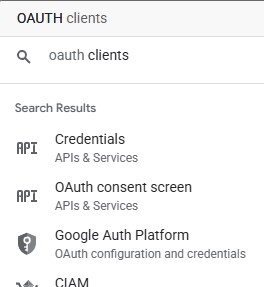
4 - Select first search result i.e. Credentials (API & Services) .
5 - Inside that page, click on Create credentials button. In dropdown menu, select OAuth client ID option . A new page will appears to create OAuth client ID.
6 - In Application type, select Web Application .
7 - Choose name of your OAuth client. You can choose any of your choice. For example, "my web client" etc.
This name is only used to identify the client in the console and will not be shown to end users.
8 - Inside Authorized redirect URIs section, click on Add URI button. Input text field will appear.
9 - Now go back to appwrite console auth section and make sure that Google Provider modal window is opened and google OAuth is enabled which we left in 1st step.
10 - Copy the URI (complete url) from Google OAuth2 settings modal window inside appwrite console.
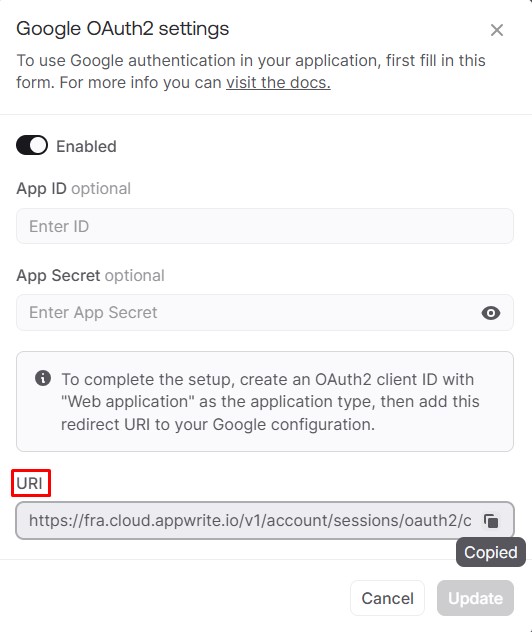
11 - And paste it inside Authorized redirect URIs input fieled of google cloud console.
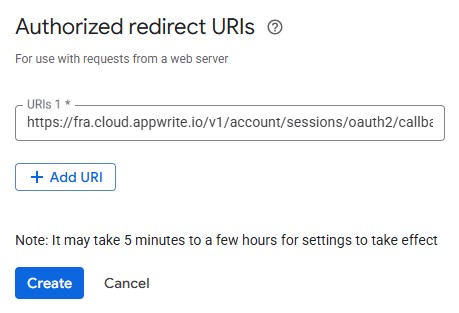
12 - Now click on Create button.
-
3rd Step
Till now we have successfully created OAuth client Id for our app inside Google Cloud Console. Now we need to get following values from cloud console and set them inside appwrite google Oauth model window for to function properly:
- App ID
- App Secret
1 - Go to clients section inside google cloud console.
2 - Select your recently created OAuth 2 Client ID.
3 - On right side, you can see the Additional information section.
4 - Copy the Client ID from there and paste it inside appwrite console Google OAuth modal window at App ID input field.
Google Cloud Console OAuth Client ID = Appwrite Console Google OAuth modal settings window APP ID
5 - Copy the Client secret from there and paste it inside appwrite console Google OAuth modal window at App Secret input field.
Google Cloud Console OAuth Client secret = Appwrite Console Google OAuth modal settings window App Secret

6 - Click on Update button.
DONE !